
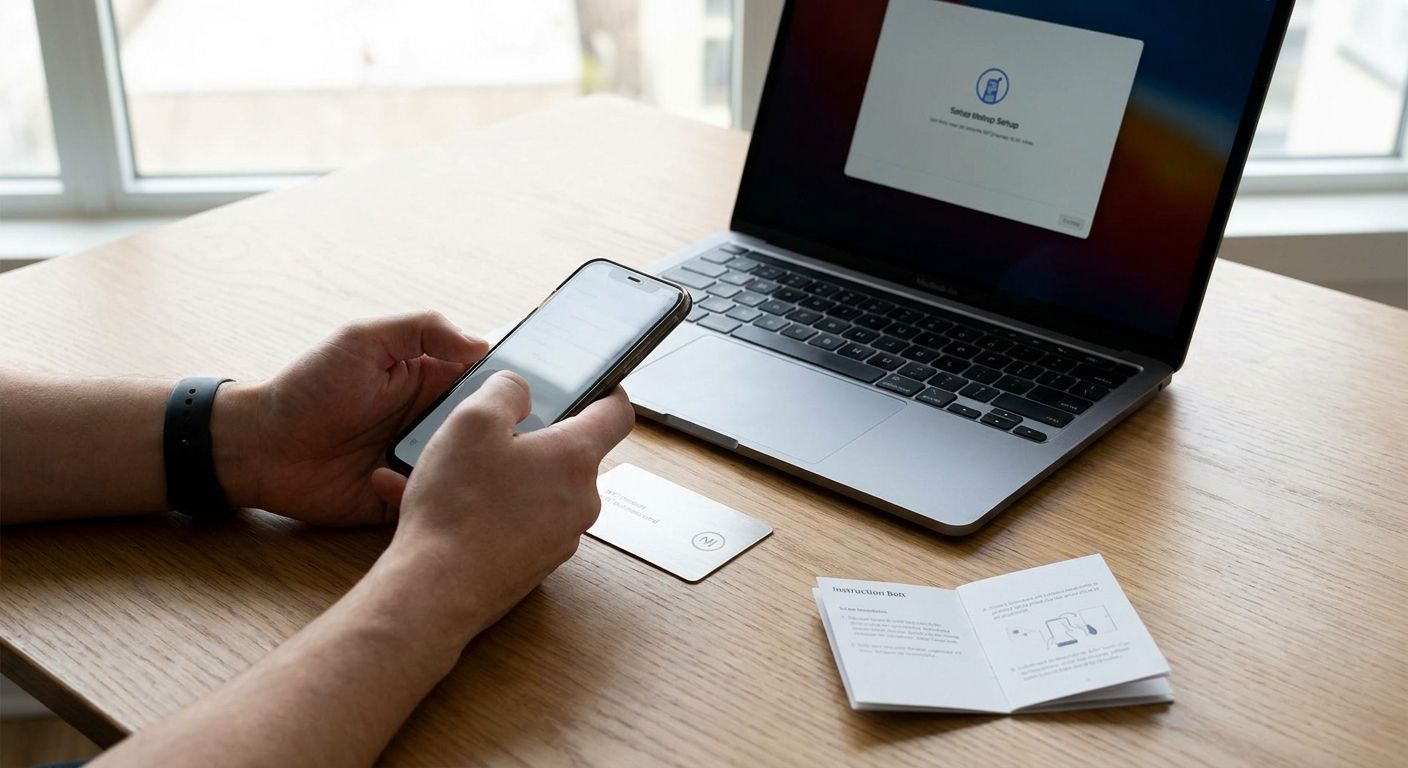
An NFC business card only works if the chip is loaded correctly and the person tapping it actually lands on the right page — this guide walks through how to set up an NFC business card from blank chip to tested tap, no app-store guesswork.
- Setting up an NFC business card takes about 10 minutes with a free app like NFC Tools.
- Most chips (NTAG213) hold only 144 bytes, so a shortened link beats a full URL.
- Tap read range is about 4cm — hold the phone flat against the card for a full second.
- Pair the chip with a printed card from Print Fast so the tap has a physical backup.
- Test on both iPhone and Android before handing out a single card in 2026.
Why this matters
An NFC business card replaces the moment someone types your name into a search bar with a single tap that opens your contact page, LinkedIn, or portfolio. It only works if the chip is written correctly, tested on more than one phone, and backed by a printed card people can still hand over when a phone is dead or a stranger doesn't trust an unfamiliar tap.
Setting one up wrong is common — oversized links that get truncated, locked chips that can't be updated, and cards that fail on iPhone because nobody tested past Android. None of that requires special equipment to fix, just the right order of steps.
A good NFC setup pairs with a Print Fast business cards order so the tap has a physical fallback — the chip carries the digital handoff, the card carries the in-person one.
What you'll need
- An NFC-capable card or sticker — a preprinted PVC card with an embedded chip, or an NFC sticker you apply to an existing printed card
- A smartphone with NFC — iPhone XS/XR (2018) or newer, or almost any Android phone released after 2012
- A free NFC writing app — NFC Tools is the most common choice on both iOS and Android
- The link you want people to land on — a vCard, LinkedIn profile, Linktree, or your own site
- 10 minutes and a second phone to test with, ideally one iPhone and one Android
The steps
1. Choose your NFC card format
Decide whether you're writing a chip embedded in a card, an NFC sticker on the back of a printed card, or a standalone tag. Embedded-chip cards feel more finished for client-facing work, while stickers are cheaper for testing a rollout before committing to a full print run.
If you're going the sticker route, order your printed cards first so the sticker placement doesn't cover a logo or QR code. Common mistake: sticking the chip directly over a metal or foil-finished card — metal backing blocks the signal and the tap won't read at all.
2. Download an NFC writing app
Install NFC Tools (free on both Android and the App Store) or a similar writing app. This is the app that pushes data onto the blank chip — it's separate from whatever app you'll use later to read the card.
Open the app and go to the "Write" tab before you touch the card. Common mistake: using a QR-generator app that doesn't actually support NFC writing — check the app description for "NFC write" or "tag writer" specifically.
3. Prepare your link before you write it
Most basic chips, like the NTAG213, hold only 144 bytes of usable memory — a long LinkedIn URL with tracking parameters can eat that entire budget on its own. Run your target link through a short-link service first so the final string is under 40 characters.
If your card uses a bigger chip like the NTAG215 (504 bytes) or NTAG216 (888 bytes), you have more room for a full vCard with a name, phone number, and email in one write. Confirm which chip is in your card before deciding how much to pack in.
4. Write the data to the chip
In NFC Tools, select "Add a record," choose "URL" or "Contact" depending on what you prepared in step 3, and tap "Write." Hold the card flush against the back of the phone — NFC read range is about 4cm, so anything looser than direct contact will fail.
The write itself takes under a second once the phone locates the chip. If nothing happens after 5 seconds, lift the card off and reposition it slightly lower on the phone, closer to where the phone's own NFC antenna sits (usually the top third of the back panel on iPhone, center-back on most Android models).
5. Test the tap on both iPhone and Android
Android opens NFC links automatically as long as NFC is turned on in Settings. iPhone requires iOS 14 or later for background tag reading — on older iOS versions the person tapping has to open the Camera or Control Center's NFC reader manually.
Hand the card to a second phone and confirm the link opens within a second of contact, not after a delay. Common mistake: testing only on your own phone, then discovering weeks later that half your contacts are on an iPhone running an older iOS version that needs an extra tap.
6. Lock the chip only after you're confident in the link
NFC Tools has a "Lock tag" option that makes the chip permanently read-only — useful for a final production run, risky for a first draft. Locking prevents anyone (including you) from rewriting the card if your link changes.
Skip locking until you've run a full test cycle across a few devices. If you're printing 500 cards for 2026, write and test one sample first, lock nothing, and only lock the batch once the link is confirmed stable.
7. Pair the chip with a printed backup card
An NFC-only card fails the moment someone's phone is dead, in airplane mode, or simply doesn't have NFC turned on. Ordering a standard printed card from Print Fast alongside the NFC version means the handoff still works with a phone number and email printed in ink, no tap required.
This matters more for trade shows and networking events in 2026 than it did a few years ago — NFC adoption has grown, but plenty of people still default to reading a printed card first.
8. Keep the link current with a dynamic short URL
If you used a short-link service in step 3 rather than writing a raw destination URL, you can update where that short link points without rewriting the chip. This is the difference between reprinting 500 cards when you change jobs and editing one link in a dashboard.
Check the short link once a quarter to confirm it still resolves — link services occasionally expire free accounts after a period of inactivity.
Troubleshooting
- Phone shows nothing on tap — NFC is likely off in Settings. On Android, check Settings > Connected devices > NFC. On iPhone, NFC for tags works automatically on iOS 14+ but confirm Airplane Mode isn't on.
- Tap works on Android but not iPhone — the phone is running an iOS version older than 14, or the card's chip type isn't fully supported by Core NFC. Test with the Control Center's NFC tag reader as a workaround.
- Write fails repeatedly in the app — the chip may already be locked from a prior write, or the phone lost contact mid-write. Reposition the card lower on the phone's back panel and retry.
- Link opens but shows a broken or truncated page — the original URL exceeded the chip's byte limit (144 bytes on NTAG213). Rewrite using a shortened link instead.
- Card doesn't read at all near metal card holders — metal backing absorbs the NFC signal. Move the card away from the metal surface before tapping.
- Chip reads fine solo but fails once laminated or sleeved — thick lamination over 0.5mm can push the card past the 4cm effective range. Use a thinner laminate or skip lamination directly over the chip zone.
Tools and resources
- NFC Tools app — free chip-writing and testing app for Android and iOS
- A short-link service — keeps your URL under the chip's byte budget
- A printed backup card — order custom business card printing so the tap always has a paper fallback
- A second test phone — ideally one iPhone, one Android, before any print run
- A yard sign or lawn sign, if you're in real estate — NFC cards pair naturally with signage at open houses; the lawn sign guide for real estate agents covers sizes and turnaround for that setup
What to do next
Once your NFC card is tested and working, the next move for agents and small business owners running open houses in 2026 is matching the digital tap to physical signage on-site — the lawn sign guide linked above breaks down sizes and materials that hold up outdoors alongside an NFC-equipped card.
FAQ
How do I set up an NFC business card for the first time?
Download a free writing app like NFC Tools, prepare a short link under 144 bytes, and write it to the chip by holding the card flush against your phone for about a second. Test the tap on both an iPhone and an Android phone before handing out any cards.
Do I need an app to use an NFC business card?
The person receiving the tap doesn't need an app on modern phones — Android and iOS 14+ open the link automatically. You only need a writing app, like NFC Tools, to set the card up in the first place.
Why won't my NFC card read on iPhone?
Older iOS versions require opening the Camera or Control Center's NFC reader manually since background tag reading only works on iOS 14 and later. Confirm the iPhone's iOS version before assuming the chip is faulty.
How much data can an NFC business card chip hold?
A standard NTAG213 chip holds 144 bytes, enough for a short link but not a full unshortened URL. Larger chips like the NTAG215 hold 504 bytes and can fit a full vCard with name, phone, and email.
Can I change the link on an NFC card after it's printed?
Yes, as long as you didn't lock the chip and you used a dynamic short link rather than a raw URL. Update the short link's destination in its dashboard and every printed card updates without a reprint.
Is an NFC business card better than a QR code?
NFC taps automatically without opening a camera app, while QR codes need the phone's camera pointed and focused. Many small businesses print both on the same card so either method works depending on the recipient's phone.
What's the read range for an NFC business card?
Effective read range is about 4cm, so the card needs near-direct contact with the back of the phone. Anything looser, including a thick wallet or phone case, can block the read.
Should I still carry a printed business card if I have NFC?
Yes — a printed card works when a phone is dead, in airplane mode, or simply doesn't have NFC enabled. Pairing an NFC card with a standard printed card from a shop like Print Fast covers both situations.
One last thing
The most overlooked failure point isn't the chip — it's lamination. Standard laminate under half a millimeter is fine, but anything thicker pushes the chip past its 4cm effective range and the card stops reading even though the write was perfect. Test the tap after lamination, not before, and you'll catch this before 500 cards go to print in 2026.